 BG Remove Pro
Remove a Background and Make a Transparent PNG Under 100KB
Compare real PNG compression on product edges, gradients and small text. Check transparency, dimensions and two meanings of a 100KB limit.
Keep transparency, pixel dimensions and file size as separate requirements. Remove the background, save the transparent PNG and inspect the actual compressed output. In our new three-sample check, one PNG reached 100,141 bytes: below this tool’s 102,400-byte limit, but above a destination using 100,000 bytes. A green size status alone is not enough.
The worked example below includes an earlier 99,835-byte output and an above-target full-size attempt. The new six-result comparison adds controlled gradients, semi-transparent edges and small text. These are separate recorded runs, not fixed output sizes or a guarantee that every image will fit.
Why a cutout PNG can be larger than the photo
Our source product JPG is 291,325 bytes. The transparent High quality PNG is 1,449,721 bytes at the same 1920 × 1287 dimensions. A JPEG photograph and a PNG cutout use different image data and encoding; the PNG also carries transparency. Pixel count, color variation, edge detail and encoding all affect the result. Adding alpha is not the only cause, and removing the background does not guarantee a smaller file.
PNG encoding can be lossless while a tool changes colors, alpha or dimensions before encoding. A PNG filename is not proof that the edited pixels are unchanged. Keep the original and compare the saved output.
Check what the destination actually requires
Before changing the photo, find the destination’s maximum bytes, permitted formats and required pixel dimensions. Our 100KB compressor uses 100KB = 102,400 bytes. Some destinations use 100,000 bytes. The successful output here is below both, but you should still check your particular destination.
Keep PNG when transparency is required. JPEG cannot store transparent pixels; converting a cutout to JPEG adds an opaque background. A file-size limit alone says nothing about the required width, height or how clean the subject’s edges must be.
1. Remove the background and inspect the actual cutout
Open the background remover, select one supported image up to 10 MB and wait for the model and processing. Download the transparent PNG and keep the original photo. Background removal runs in the browser, without an account, watermark or paid PNG export step. Time and available memory depend on the device.
The source for this example is the sneaker test input JPG. Our full-size High quality PNG is 1920 × 1287 pixels and 1,449,721 bytes. The original dimensions are retained at this stage; that does not mean the PNG will be smaller than the photograph.
Inspect laces, soles, shadows and gaps against light and dark backgrounds. The eight-image test report includes both successful and problematic boundaries. A compressor reduces file size; it does not repair a missing part of the subject.
Choose the compression path
- Keep pixel dimensions: try the PNG compressor. Its current interface reduces the palette to up to 256 colors and optimizes PNG encoding. It keeps the canvas dimensions, can alter colors and alpha, has no lossless-only switch and has no 100KB size target.
- Work toward a file cap: try the 100KB tool. It keeps PNG input as PNG, may change pixels or dimensions, and can retain a file that is already below the limit. Always read the reported bytes and dimensions.
A smaller file is useful only if the subject, text and edges remain suitable for the intended use.
2. Try the 100KB tool and read the result
Select the saved transparent PNG in the 100KB tool. Alternatively, the homepage result’s 100KB action can pass the cutout locally into that compressor. Ordinary links elsewhere on the site require you to save and select the file yourself.
Start compression and check the status, exact bytes, output dimensions and compressed preview. An above-target result can still be downloaded; downloading it does not make it compliant.
Our first attempt on the full-size sneaker produced 543,392 bytes at 1824 × 1222 pixels. It remained a transparent PNG, but it did not satisfy the 102,400-byte maximum. You can inspect the actual above-target PNG.
3. Prepare a smaller copy only if smaller dimensions are allowed
If the destination requires the original pixel dimensions, stop here and review its requirements. Avoid discarding required detail merely to get a green size status.
For the earlier archived example, we prepared a 640 × 429 transparent copy in a separate image editor. That preparation is part of the example, not a width setting in the 100KB interface. Preserve aspect ratio and alpha, and save as PNG. Cropping genuinely unused margins can also help, but should not remove part of the product.
The prepared input PNG is 193,916 bytes. In that archived run, selecting it in the 100KB tool produced the actual output PNG:
- 99,835 bytes, below the tool’s 102,400-byte limit.
- 608 × 407 pixels; compression changed the dimensions again.
- PNG output with transparent and partially transparent pixels.
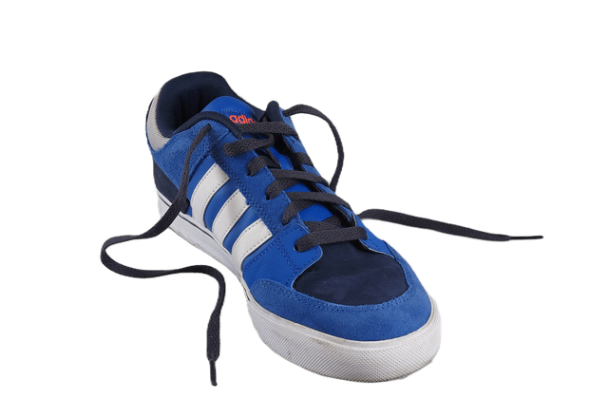
This copy can be useful where that pixel size is sufficient. Inspect the downloaded file at its intended display size. File-size compliance does not guarantee legible lettering, accurate color or clean fine edges.
A later run of this same prepared input produced 100,141 bytes, as shown below. Check each actual download; the older 99,835-byte file has not been replaced.
4. Keep the PNG and check the saved file
Open the downloaded PNG over a light and a dark background. A checkerboard is a display aid for transparency; it is not part of the PNG. Compare the actual width and height with the destination’s rules and keep the original for another attempt.
If you prefer to keep the pixel dimensions, the separate PNG compressor uses palette quantization. It can change colors and partly transparent edges, has no lossless-only switch and does not guarantee 100KB. On the full-size sneaker, its output was 418,384 bytes: smaller, but still above this limit. More than one approach may remain unsuitable for a strict destination.
Current three-sample compression check
On November 16, 2026, we used three frozen PNG inputs in the current local production build: the prepared product cutout, a self-created RGBA gradient/soft-edge chart, and a self-created text/line chart. Each went through both actual tool interfaces, giving six downloaded outputs. The charts use ordinary PNG encoding, with no padding added to inflate their input sizes.
The columns below compare actual bytes against two different limits. The PNG compressor itself has no target-size setting. Click an output byte count to download the unretouched application PNG.
Scroll sideways on small screens. Threshold columns are byte comparisons, not upload acceptance guarantees.
| Sample | Tool | Input bytes | Output bytes | Output pixels | ≤ 102,400 B | ≤ 100,000 B |
|---|---|---|---|---|---|---|
| Product edges | PNG compressor | 193,916 | 48,980 | 640 × 429 | Yes | Yes |
| Product edges | 100KB tool | 193,916 | 100,141 | 608 × 407 | Yes | No |
| Color gradients and semi-transparent curves | PNG compressor | 146,787 | 20,872 | 1024 × 512 | Yes | Yes |
| Color gradients and semi-transparent curves | 100KB tool | 146,787 | 75,481 | 1024 × 512 | Yes | Yes |
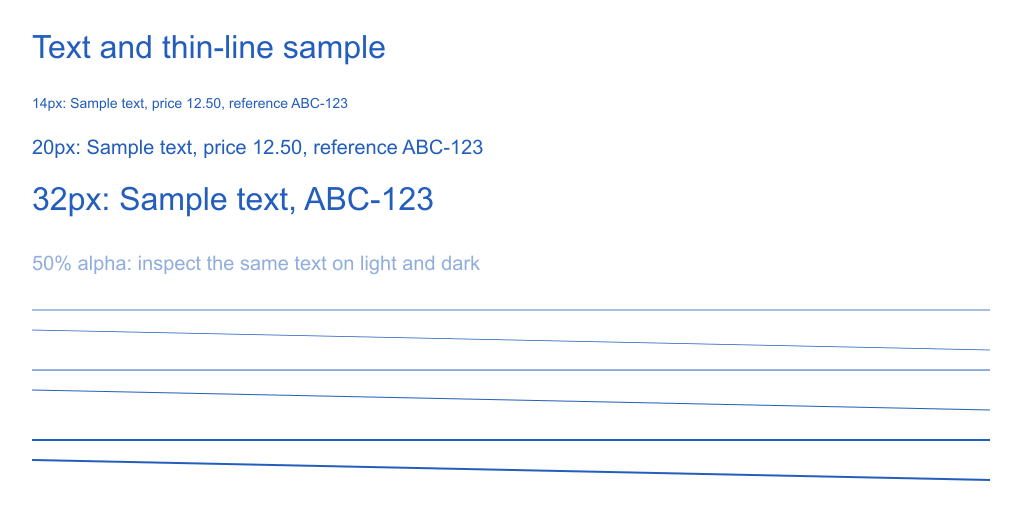
| Small text and thin lines | PNG compressor | 33,940 | 14,804 | 1024 × 512 | Yes | Yes |
| Small text and thin lines | 100KB tool | 33,940 | 33,940 | 1024 × 512 | Yes | Yes |
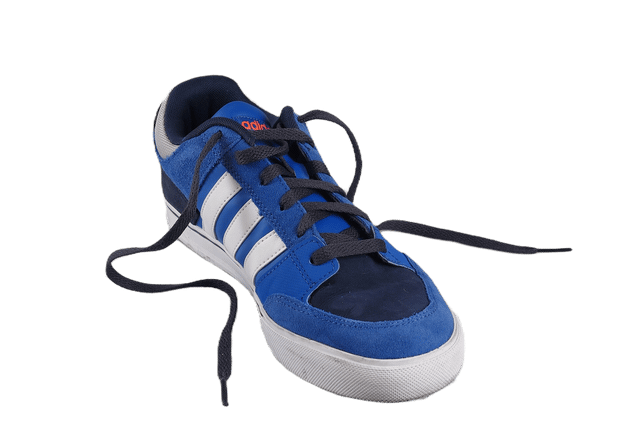
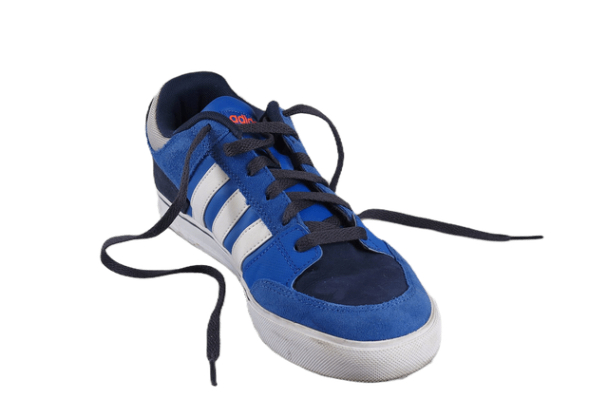


The product’s 100,141-byte output fails a 100,000-byte maximum. The 100KB tool correctly marks it as reaching its own 102,400-byte target. Check the receiving site’s definition and inspect your own file.
Product edges
The PNG compressor kept 640 × 429 pixels and reduced the file to 48,980 bytes. The shown lace remains present; colors and edge pixels still changed. The 100KB output is a smaller 608 × 407 canvas and looks softer in the shown detail. Its 100,141 bytes pass 102,400 but fail 100,000. The resized crop covers the same relative area with fewer pixels, not a pixel-aligned quality test.
Open the fixed input PNG (640 × 429; 193,916 bytes).
Inspect lace and edge detail on white and dark backgrounds
Scroll horizontally: input at left, PNG compressor in the middle, 100KB tool at right. Top: white; bottom: dark. Native-pixel crops are not enlarged. A resized result uses the corresponding relative region, padded to the panel size rather than resampled.
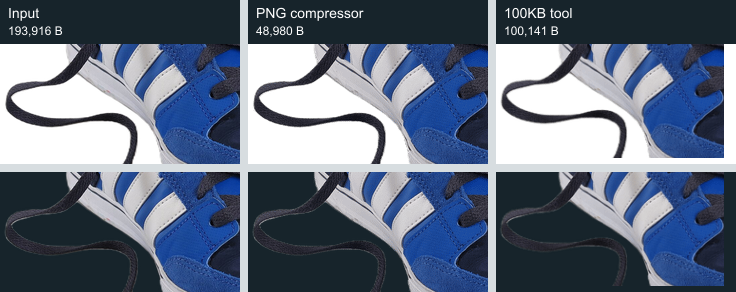
Lossless WebP display composite; background colors and padding are display aids. Use the PNG links for the actual file. Open full comparison.
Color gradients and semi-transparent curves
Both outputs kept 1024 × 512 pixels, and both changed decoded pixels. The PNG compressor’s 20,872-byte output shows a more stippled color ramp and rougher soft-curve transitions in these crops. The 75,481-byte 100KB output looks closer to the input at these views, but its pixels also changed. This one sample does not establish a quality ranking.
Open the fixed input PNG (1024 × 512; 146,787 bytes).
Inspect color-ramp detail on white and dark backgrounds
Scroll horizontally: input at left, PNG compressor in the middle, 100KB tool at right. Top: white; bottom: dark. Native-pixel crops are not enlarged. A resized result uses the corresponding relative region, padded to the panel size rather than resampled.
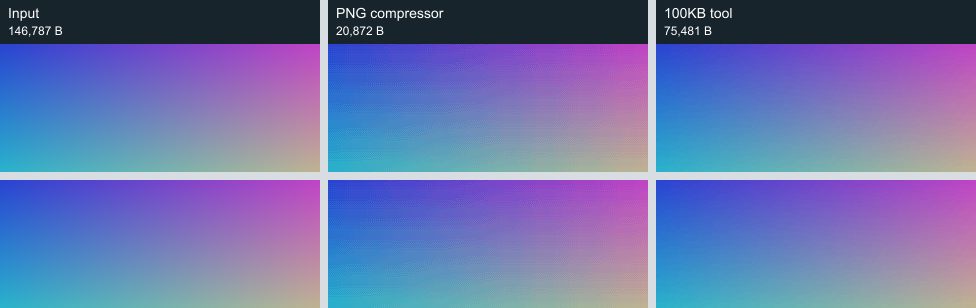
Lossless WebP display composite; background colors and padding are display aids. Use the PNG links for the actual file. Open full comparison.
Inspect semi-transparent curve detail on white and dark backgrounds
Scroll horizontally: input at left, PNG compressor in the middle, 100KB tool at right. Top: white; bottom: dark. Native-pixel crops are not enlarged. A resized result uses the corresponding relative region, padded to the panel size rather than resampled.
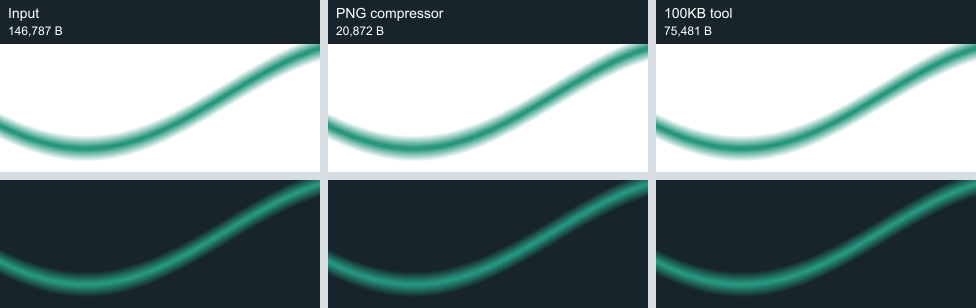
Lossless WebP display composite; background colors and padding are display aids. Use the PNG links for the actual file. Open full comparison.
Small text and thin lines
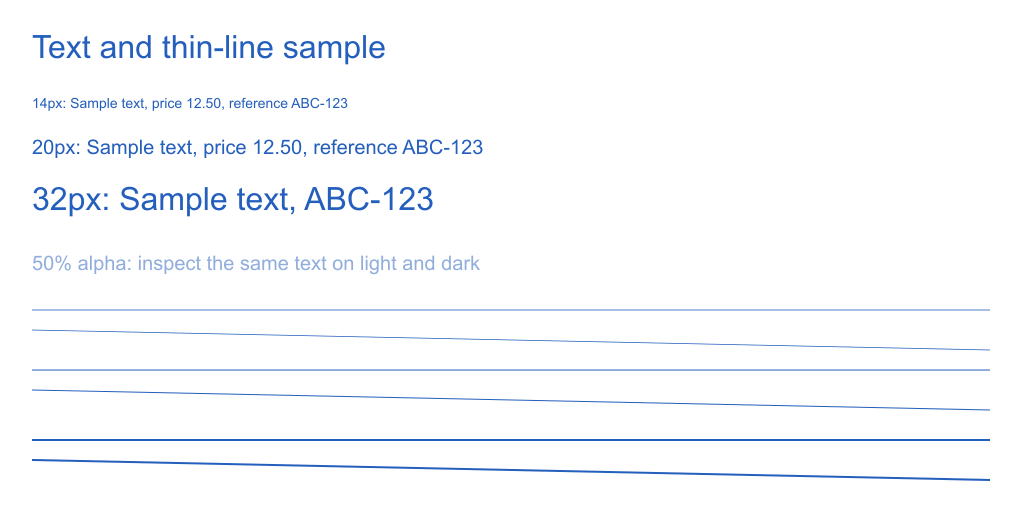
The 14px/20px text and fine-line segments remain recognizable in the shown PNG-compressor crops; we did not observe obvious missing strokes there. The blue text has lower contrast on the dark background in the input too. The 100KB tool returned the original 33,940-byte file unchanged because it already fit; its SHA-256 and decoded pixels match the input. The smaller 14,804-byte PNG-compressor output is not pixel-identical.
Open the fixed input PNG (1024 × 512; 33,940 bytes).
Inspect 14px and 20px text detail on white and dark backgrounds
Scroll horizontally: input at left, PNG compressor in the middle, 100KB tool at right. Top: white; bottom: dark. Native-pixel crops are not enlarged. A resized result uses the corresponding relative region, padded to the panel size rather than resampled.
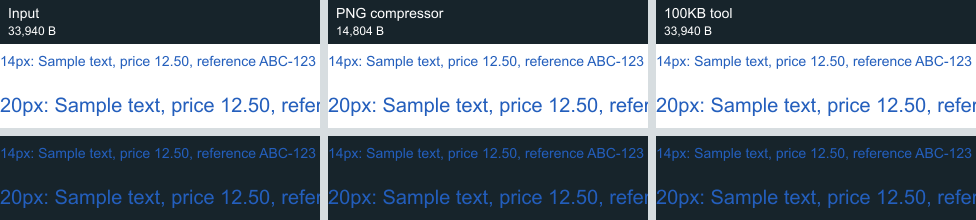
Lossless WebP display composite; background colors and padding are display aids. Use the PNG links for the actual file. Open full comparison.
Inspect thin-line detail on white and dark backgrounds
Scroll horizontally: input at left, PNG compressor in the middle, 100KB tool at right. Top: white; bottom: dark. Native-pixel crops are not enlarged. A resized result uses the corresponding relative region, padded to the panel size rather than resampled.
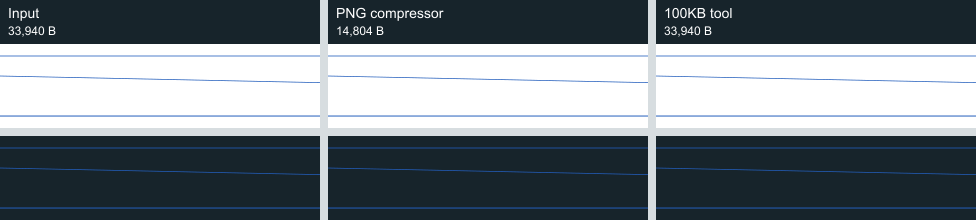
Lossless WebP display composite; background colors and padding are display aids. Use the PNG links for the actual file. Open full comparison.
If the file still does not fit
- A strict 100,000-byte maximum: a result between 100,001 and 102,400 bytes is still too large for that destination, even when our tool says “Target reached.”
- Original dimensions required: the 608 × 407 product result does not satisfy a 640 × 429 requirement. Try the dimension-preserving PNG tool and inspect its output; it may still be too large.
- Smaller dimensions allowed: crop genuinely unused margins or prepare a smaller copy in your image editor, preserve aspect ratio and alpha, and try again. The 100KB page does not have a user-entered width setting.
- Transparency required: keep an accepted alpha-capable format. JPEG cannot store the transparent background. Check both the format rule and the bytes rather than changing the filename extension.
Before using the file, check its actual bytes, dimensions, format, text strokes, gradient transitions and edges on the destination background. Keep the original for another attempt.
Method, full walkthrough and limits
These are team-run tests on Apple M5 Pro, darwin 25.5.0/arm64, using Chrome 156.0.0.0 as reported by the browser. The comparison is a local production-build UI test, not a deployed-site performance benchmark. The synthetic text chart requests Arial at recorded sizes; use its fixed PNG/hash when comparing across environments.
We also completed a keyboard walkthrough from the homepage’s Fast result to the 100KB tool. The received file matched the downloaded cutout’s SHA-256, and its one-time handoff marker was consumed. That separate 1,569,840-byte cutout produced 545,325 bytes at 1824 × 1222, still above the target. Inspect the Fast cutout and actual above-target result. Automated pointer actions on the homepage were intercepted, so this run validates keyboard activation, not the mouse path.
All five comparison figures use the same selected relative region across the three images, at native crop resolution. Resized outputs cover fewer pixels and are padded for display; no pixel-difference score or quality ranking is inferred. The WebP composites are lossless displays with added backgrounds, not the downloadable PNGs. A transparent-pixel count cannot prove that every partly transparent edge is unchanged.
Inputs, six outputs, alpha counts, crop coordinates and current environment JSON · Text-chart source SVG. The product source and earlier archived runs remain linked below. These six outputs are not a broad image benchmark or a promise about another browser, picture or receiving platform.
Privacy and related tasks
The background-removal and compression steps above process selected images locally. Loading the website and model still uses the network, and the site includes analytics and advertising. The separate image-format converter sends selected files to a server; it is not needed for this PNG workflow. See the privacy policy.
For an opaque product background, use the background changer and choose white after the cutout is ready. For a signature with a different file cap, the 20KB tool includes a self-created demonstration and the actual output. Its format and dimension requirements still need their own checks.
Sources and reproduction
Photo: Amsterdam Museum / Wikimedia Commons. Source, attribution and reuse information are recorded in the background-removal test report. The transparent cutout is reused from that test; it is not a newly invented segmentation benchmark.
The example inputs, unretouched application downloads, exact bytes, dimensions and hashes are listed in the workflow results JSON. Prepared inputs and reduced display previews are identified separately from application outputs. Your browser version, image and settings may produce a different result.